Call right from CRM
Make a call from the Lead list or customer profile and select the number according to configuration.
Employees work on one software, without having to switch back and forth between multiple tools.
Cogover Service
Connect outgoing and incoming calls, IVR, routing and call history with customer records. After each call, the results can become input for the next care process.
See Cogover Service connect contact-center work with CRM.
Watch on YouTubeFEATURE HIGHLIGHTS
Make a call from the Lead list or customer profile and select the number according to configuration.
Employees work on one software, without having to switch back and forth between multiple tools.
Design greetings, language, and menu selections to direct customers to the appropriate queue.
Standardize how to receive calls right from the beginning.
Distribute calls according to established availability, rotation, role, or skill.
Place the call to someone with the appropriate skills.
Save time, status, duration and audio recordings.
Easy to hand over, review and continue care on the same file.
Communicate visually with customers via video when consulting, guidance or verification is needed.
There is an additional form of direct interaction for situations that are difficult to handle with sound alone.
Create notes during or after the call to save the exchange content, processing results and what to do next.
Important information is fully recorded for convenient handover and monitoring.
Listen to monitoring, talk privately with staff, join, take over or end calls; At the same time, it supports three-way conversations.
Supervisors can assist employees while the call is in progress.
Create and manage outbound calling campaigns with Progressive Dialer or Predictive Dialer.
Reduce dial wait times and help teams focus on connected calls.
Lively monitor calls, staff status and queue status on the same screen.
The manager recognizes bottlenecks early to coordinate the switchboard in a timely manner.
Synthesize call history, queue performance and agent status according to configured scope.
Managers can see volume, waiting time and steps that need improvement.
HUMAN–AI
AI supports reading transcripts, summarizing and receiving appropriate scenarios; people handle complex situations; Cogover connects calls to CRM and workflow.
AI classifies and directly processes within the scope of authorization; Tickets are only transferred to experts when information is unclear or an exception is encountered.
Attach Ticket to customer profile, call history and recorded content.
Identify the subject, language, tone of the response, update the Ticket field, and take action authorized by the business.
Continue workflow when qualified; Only route to people when the AI reports unclear information, lacks data, or encounters an exception.
View the full Ticket and processing history, verify the unclear part, then decide on a customer response plan.
Data from the call is turned into traceable data instead of remaining in a recording file.
Attach history and recording files to the correct profile according to configuration.
Create a transcript, summarizing intent, main points, and next actions.
Edit content, add commitments and decide what needs to be created.
Create an Activity or Ticket, assign a person in charge and remind the deadline.
AI only processes the approved script and transfers it when an exception is encountered or the customer requests it.
Apply the configured prefix, IVR, queue, and lookup permissions.
Verify the necessary information and respond within the allowed data range.
Transfer people when exceeding the scope, encountering an exception or according to customer request.
Get the summary, read the history and continue the conversation.
FLEXIBLE CUSTOMIZATION
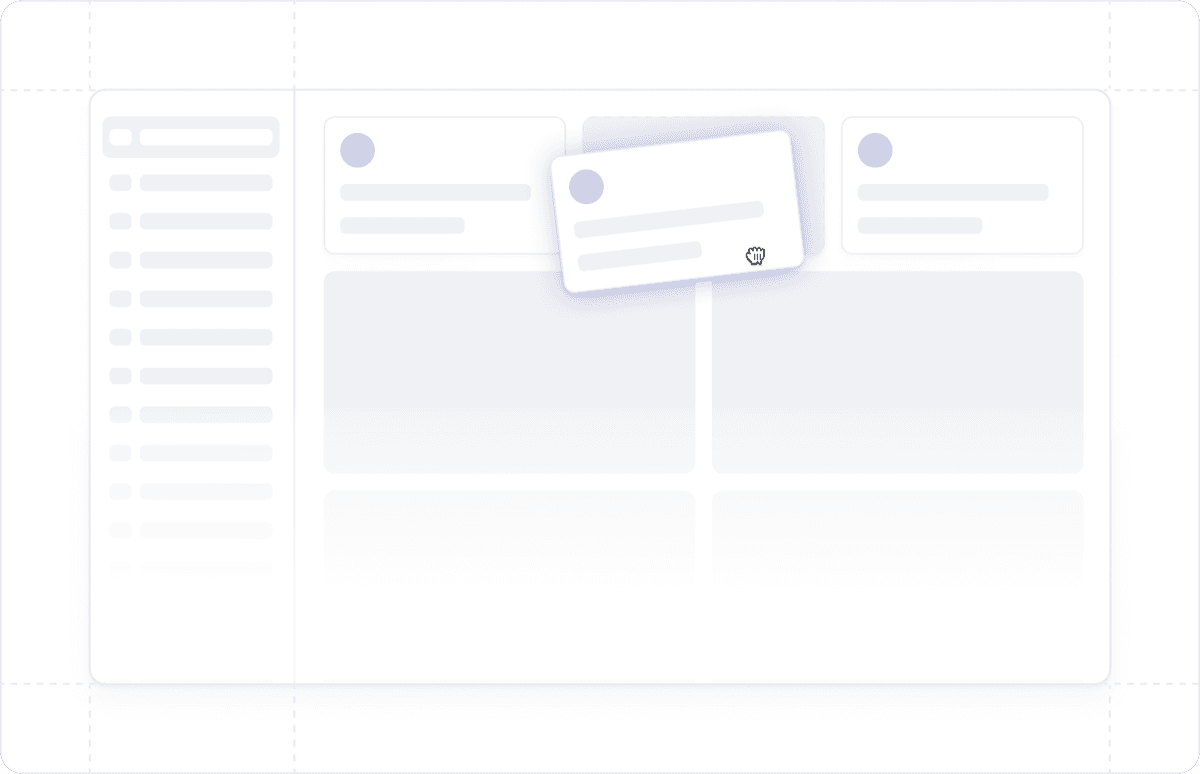
Freedom to design data, interfaces and processes that suit the way the business operates, without being constrained by a fixed software structure.
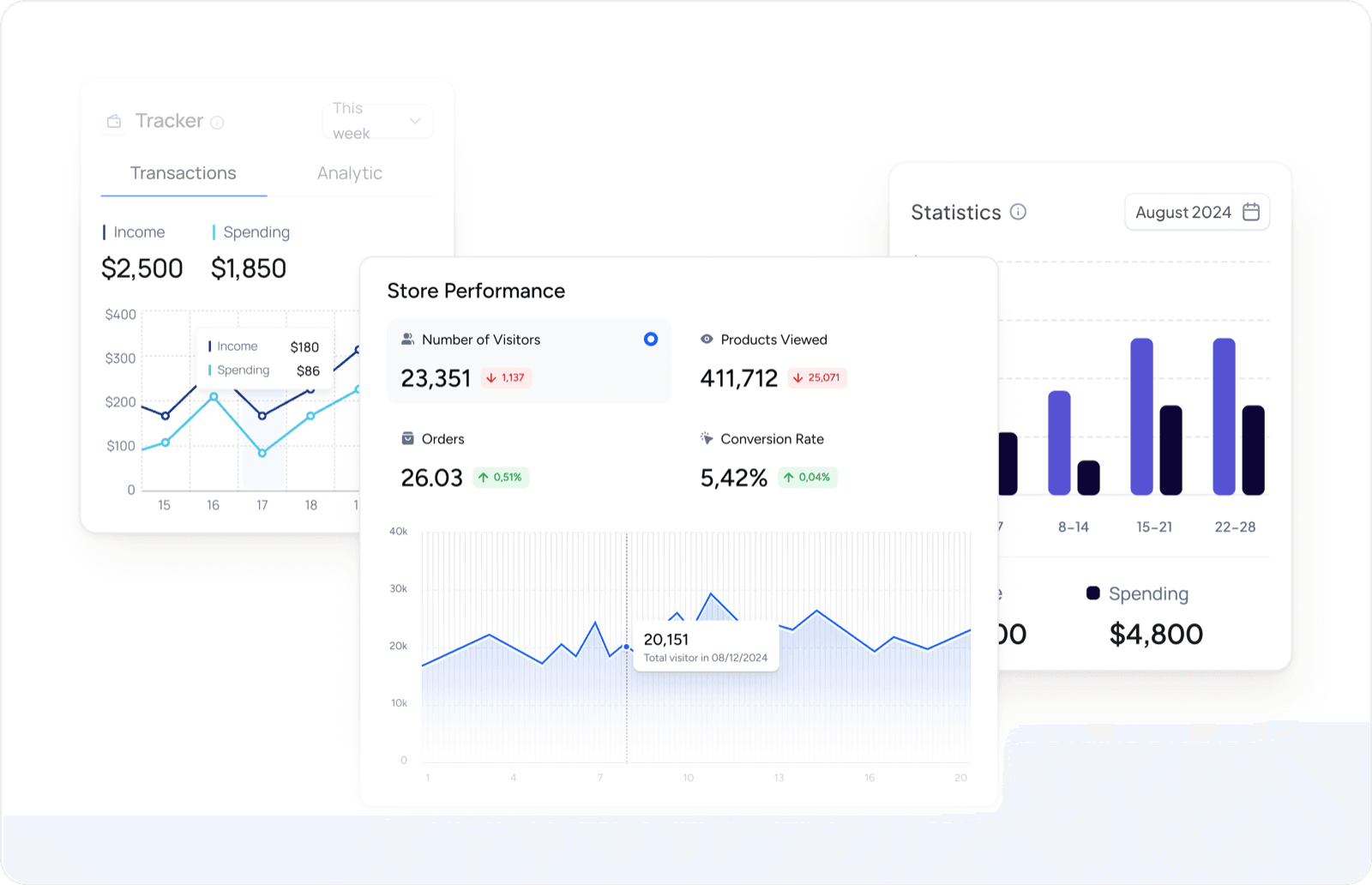
Proactively design reports and dashboards to have a 360° view of customer data and sales activities.
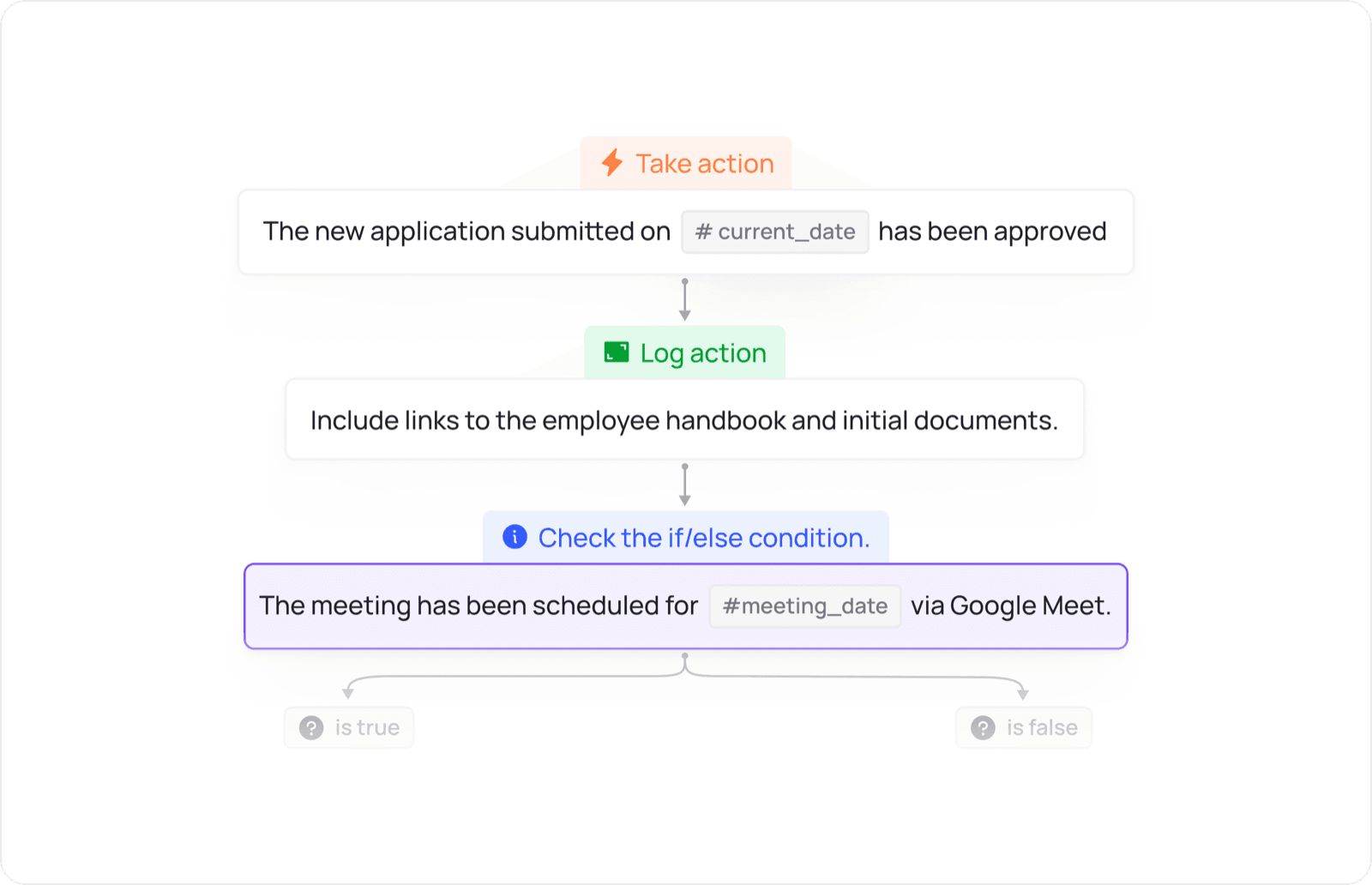
Design the flow of allocation, approval, reminders and inter-departmental actions according to the operating conditions of the business.
UNIFIED PLATFORM
Data and actions move between apps according to configured workflows.
Share your phone-number setup, IVR, queues and one real call scenario to define an appropriate contact-center scope.
 Service

